How to run the trace route command in Windows XP
Running a trace route allows the support team to better understand the network path taken to reach a particular server. This can help identify routing problems or firewalls that may be blocking access to a certain server.
-
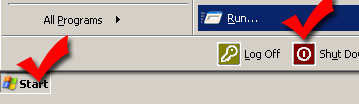
Open up Windows run dialog box
- A) Click the Windows "Start" button
- B) Click the "Run" option
-
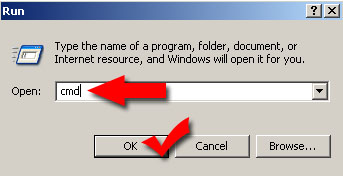
Open Windows Command prompt
- A) Type "cmd" in the open box
- B) Click the "OK" button
-
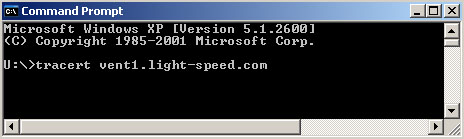
Run the "tracert" command
- A) Type "tracert IPADDRESSHERE"
- B) Press the enter key to run the commmand
-
Repeat the process atleast three times
Press the up arrow key and press the enter key again. This will allow you to run the same command again without having to type it in again. Run this command atleast three times in total; four or five would be ideal.
-
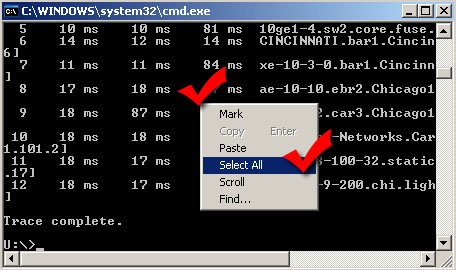
Copy all the results
- A) Right click in the black area and select "Select All"
- B) Once everything is highlighted simply press the enter key to copy the results to the Windows clipboard to be pasted later
-
Give the results the the support representatives
There are two ways of giving the data to the support representatives. You can create a new trouble ticket with the data inside of the trouble ticket, or you can send it to us at support AT light-speed DOT com.
Still stuck? Open a trouble ticket at https://cp.light-speed.com/trouble-tickets.php or see all Ventrilo Server guides.
|