How to set your microphone for ventrilo on windows XP or 2000
Here is a list of things that can help when trying to adjust your microphone settings.
- Be sure your windows microphone sound is muted or you will hear your own voice echoing in your own speakers.
- Click, Start, All programs, accessories, entertainment, volume control.
- You can also open the volume control window by double clicking the little speaker icon on the bottom right of the windows desktop
- In the volume control window be sure that your microphone mute check box is checked.
- Sometime the microphone will not show in the volume control window, open the menu "Options" click "Proprieties" and select the microphone in the list.
- You can adjust your recording sound volume in your window control panel.
- Click, Start, control Panel, Sound & audio devices and go in the tab Voice.
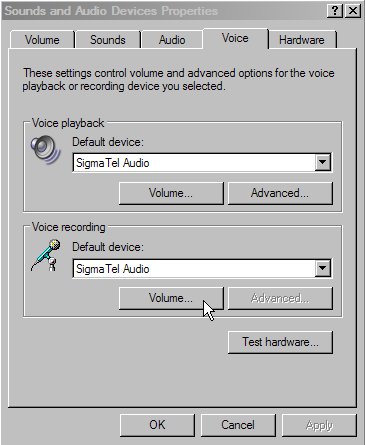
- Click the "Volume..." button under the recording section, and adjust your microphone input volume and be sure that the Select box under Microphone is selected and nothing else.
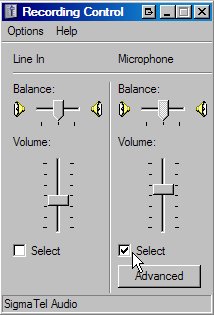
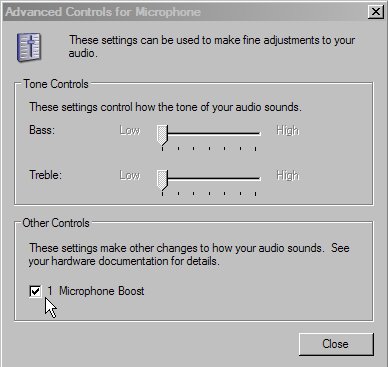
- You can as well if needed disable or enable the microphone boost, click the "Advanced" button under the microphone volume bar and you will have another window with a microphone boost check box.
Still stuck? Open a trouble ticket at https://cp.light-speed.com/trouble-tickets.php or see all Ventrilo Server guides.
|